Guides
Ergonomics Best Practices: Set Up Your Workspace, Protect Your Body
A practical desk ergonomics guide. The fundamentals, the gear, and the habits that prevent wrist pain, back pain, and burnout over a long career.
If you sit at a desk for a living, ergonomics is not a productivity hack. It is the difference between feeling fine at 50 and not. Wrist pain, low back pain, neck stiffness, and dry eyes are not inevitable parts of office work. They are signals that your setup is fighting your body. Fix the setup and most of those signals go away.
This is the short version of what we have learned standardizing desk setups across our team. The gear matters less than the fundamentals, but the right gear makes the fundamentals effortless.
Why ergonomics is worth the hour it takes to set up
The cost of getting this wrong is not a sore neck for a week. It is repetitive strain injury (RSI) that compounds over years, lost productive days, and in serious cases, surgery. The cost of getting it right is one afternoon adjusting your chair and monitor, plus the discipline to take a break every hour.
Three reasons to take it seriously:
- Compounding damage. Bad posture for one day is nothing. Bad posture for 8 hours a day, 5 days a week, for 10 years is a problem you will eventually pay for.
- Focus and energy. Pain is a low-grade attentional drain. A body that is not signaling for help has more bandwidth for actual work.
- It is cheap to fix. A good chair, a monitor mount, and a keyboard that respects your wrists costs less than one physical therapy course of treatment.
The fundamentals (free)
Before you buy anything, get these right. They cost nothing.
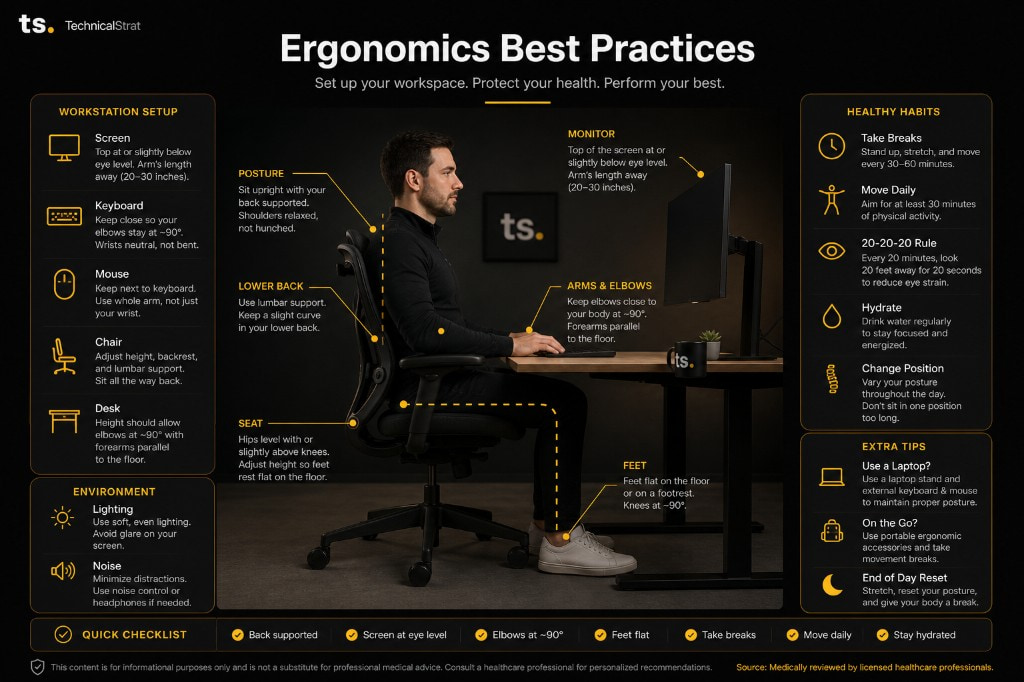
- Monitor at eye level. The top of the screen should be at or slightly below your eye line, an arm's length away (20 to 30 inches). If your laptop screen is below eye level, raise it on a stand or attach an external monitor.
- Elbows at 90 degrees. Adjust your chair so your forearms are parallel to the floor when typing. Wrists neutral, not bent up or down.
- Feet flat. On the floor or a footrest. Knees at roughly 90 degrees. If your chair is too high, your shoes hang and your hamstrings lose blood flow.
- Lower back supported. Sit all the way back so the lumbar curve of the chair meets the curve of your spine. If your chair has no real lumbar support, you will lean forward and hunch all day.
- Centered to the screen. Do not twist to look at a side monitor for hours. If you have two monitors and use both equally, center between them. If one is primary, center on it.
That is it for the fundamentals. The infographic above lays it all out visually.
Daily habits matter as much as gear
The best chair in the world will not save you if you sit motionless in it for nine hours. The body needs movement. Build these into your day:
- Stand up every 30 to 60 minutes. Walk to the kitchen. Stretch. Set a timer if you forget. Sitting for hours is the actual problem; the chair just makes the inevitable cost lower.
- 20-20-20 for your eyes. Every 20 minutes, look at something 20 feet away for 20 seconds. Eye strain is real and prevention is free.
- Hydrate. Drinking water also forces you to take bathroom breaks, which forces movement. The system is self-reinforcing.
- Vary your posture. Even good posture, held for hours, is bad posture. Lean back occasionally. Stand for parts of meetings. Cross your legs differently.
- Move daily outside of work. A 30-minute walk plus a few minutes of mobility work is more protective than any chair.
Honest tradeoffs
A few things worth saying out loud:
- An ergonomic keyboard is not a substitute for treating actual carpal tunnel. If your wrists hurt, see a doctor. The disclaimer at the bottom of the infographic is real.
- A standing desk is great if you actually use it. Most people use them for a week and then they become sitting desks with extra steps. It is a lifestyle commitment, not a piece of gear.
- Mechanical keyboards are not inherently bad for ergonomics. They are mostly neutral. The issue with most stock keyboards is shape, not switch type. A flat mechanical keyboard is no friendlier to your wrists than a flat membrane one.
A couple of things we like
If you are looking at gear, two we are happy with:
- The chair we standardize on: the Steelcase Series 1. Real lumbar support, 4D arms, around $500. The full review covers why.
- A wave-shaped keyboard for wrist concerns: the Logitech Wave Keys. Popular with the ergonomics crowd because the wave shape and built-in palm rest keep your wrists in a more neutral position without making you re-learn how to type.
Bottom line
Ergonomics is one of those things that costs a little now and saves a lot later. Spend an afternoon adjusting your monitor, your chair, and your keyboard. Build the daily habits. Future-you will thank you.
For the full work-from-home setup we ship to remote employees (which already follows these principles), see our WFH workstation kit. For looking good on the calls you take from this newly ergonomic desk, our video conferencing setup guide covers the camera and lighting side.
This article is for informational purposes only and is not a substitute for professional medical advice. If you have persistent pain or symptoms, consult a healthcare professional.
Related reading
Reviews
Steelcase Series 1: The One Office Chair Worth Buying
$500 gets you a 12-year warranty, two-minute tool-less assembly, and the same engineering Steelcase ships to Fortune 500 offices. The default-buy chair for any desk.
Guides
Video Conferencing Best Practices: Look Pro on Every Call
A practical guide to webcam, lighting, and setup for video calls. The gear and the habits that separate professional video presence from amateur.
Guides
The WFH Workstation We Ship to Every Remote Employee (Under $600)
Our standardized work-from-home setup ships directly from Amazon to any employee's doorstep. Dual monitors, dock, webcam, headset, keyboard, and mouse for under $600 per seat.