Guides
Video Conferencing Best Practices: Look Pro on Every Call
A practical guide to webcam, lighting, and setup for video calls. The gear and the habits that separate professional video presence from amateur.
Video calls are not optional anymore. Whether you are remote, hybrid, or sitting in an office down the hall from the person on the other end, half your meetings happen on camera. How you look and sound on those calls is now part of how you communicate. It is a skill, and like any skill, the gear and the fundamentals matter.
The good news: you do not need a YouTube studio. You need a decent webcam, a little bit of light on your face, and a camera placement that does not make you look like you are video calling from the bottom of a well. We will show you exactly what we use and why.
Why video presence matters more than people think
For remote employees, video is your professional presence. Most of your colleagues will rarely see you in person. The version of you they remember is the one on the Teams or Zoom tile. If that version is dim, blurry, or off-center, that is the impression that sticks. It is not vanity, it is communication.
It matters in the office too. Hybrid meetings are now the default. The remote attendees see the in-office crowd as a single wide-angle shot of a conference room, while the in-office crowd sees each remote person in a clean head-and-shoulders frame. If your shared meeting room camera is fine but the remote people look great, the meeting subtly tilts toward the people who look prepared. Nobody mentions it. Everybody feels it.
Strong video presence does three things. It signals that you take the meeting seriously. It builds trust with people who would otherwise read you as a name and a voice. And it makes your message land, because viewers can read your face instead of guessing at it.
The three things that actually matter
Forget the long list of gear influencers tell you to buy. There are exactly three variables, in this order:
- Lighting on your face
- Camera quality that handles your room
- Position and framing of you in the shot
Audio matters too, but a decent USB headset or laptop mic is good enough for most people. Lighting and camera placement are where the upgrades pay off.
Camera: Logitech Brio 4K
We standardize on the Logitech Brio 4K for every workstation we ship. It is more than most people technically need, and that is precisely the point. You buy it once and stop thinking about it.
Why this camera over a $50 alternative:
- 4K resolution with HDR. The HDR (Logitech calls it RightLight 3) is what actually matters. It corrects for windows behind you, dim rooms, and mixed lighting without making you look washed out. Cheap webcams crank exposure and turn your face into a blob.
- Real autofocus. When you lean forward to point at something on screen, you stay sharp.
- Field of view that adjusts. 65, 78, or 90 degrees, depending on whether you want a tight head shot or want your dog visible in the background.
- Windows Hello. Sign-in by face. Small thing, used every day.
- Holds up in conference rooms. When someone screen shares your video onto a 65-inch TV, the difference between 720p and 4K is brutal.
Lighting: the single biggest upgrade
This is the one nobody believes until they try it. Lighting is the difference between looking amateur and looking pro. A $170 webcam in bad lighting looks worse than a $40 webcam in good lighting. We have tested this on real calls. It is not close.
The fix is simple: put a soft, neutral light source in front of your face, slightly above eye level, with a second one balancing the other side. Avoid sitting with a window behind you. Avoid relying on your ceiling light, which casts shadows under your eyes and nose.
We use HumanCentric. The design is the cleanest on the market, the build quality is solid, and the controls are not annoying. They mount on top of your monitor (or to the sides) and just work.

The Pro version (~$120) is the one we recommend if you take video calls seriously. It is two lights and a wireless desk controller. The controller sits on your desk, looks great, and lets you tune brightness and color temperature without reaching up to the monitor or fighting cords. Worth every dollar.
FavoriteThe simple single-light version (~$40) is a real option if you do not want to spend $120. One panel, mounted above the monitor, will dramatically improve your face lighting compared to nothing. It is not as polished as the Pro, but it does the job.
Either way, do not skip lighting. It is the single change that makes the biggest difference, and most people never make it.
Position and framing
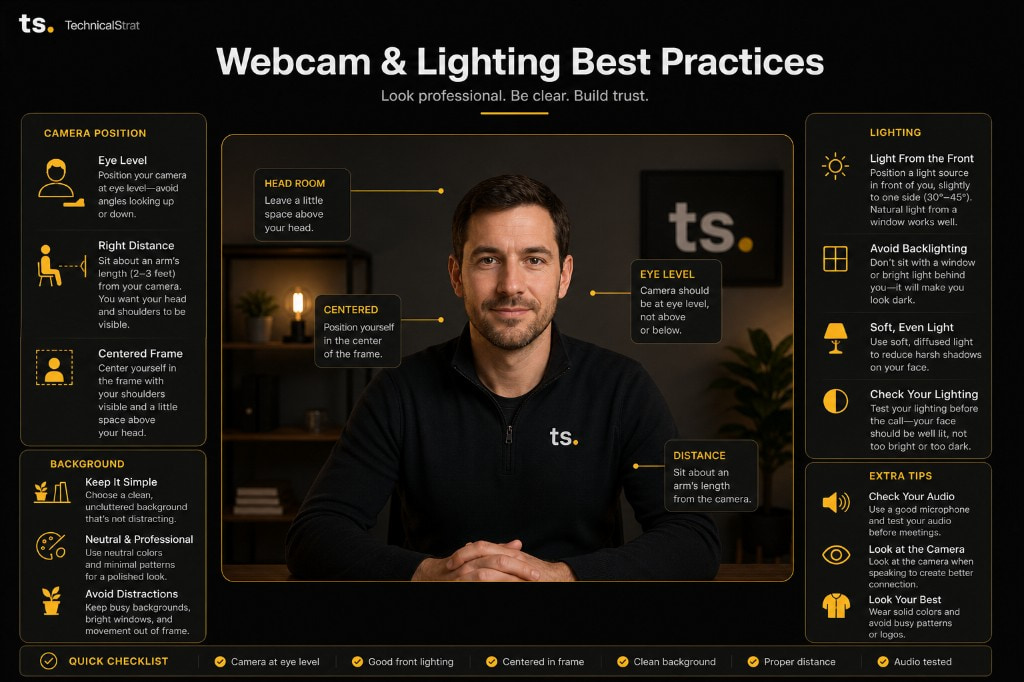
Once the gear is right, the rest is habit. The infographic above covers it visually. The short version:
- Camera at eye level. Not below, not above. Stack books, raise the monitor, get a webcam riser if you have to. Looking down at the camera is the most common mistake on every call.
- Sit one arm's length away. About 2 to 3 feet from the camera. Closer than that and you fill the frame uncomfortably. Farther and you shrink.
- Center yourself. Head and shoulders visible, a small space above your head, not too much.
- Face the light. Light source in front of you, not behind. If you sit with a window at your back, close the blinds or move.
- Clean background. Not necessarily empty, just not chaotic. A bookshelf, a plant, or a plain wall all work. Avoid bright windows and busy patterns.
These are not subjective. They are the same five rules every news anchor, podcaster, and YouTuber follows because they work.
A word on audio
We will write a longer audio piece, but the short version: a wired USB headset with a boom mic beats your laptop's built-in mic every time. We ship the Jabra Evolve2 30 with our standard WFH kit for that reason. If you are in a quiet room and only doing 1:1 calls, the Brio's dual mics are acceptable. For anything bigger, wear a headset.
Bottom line
You do not need to be a content creator to take video presence seriously. You need a real webcam, a little bit of light on your face, and a camera at eye level. Put roughly $200 to $300 into a Brio plus HumanCentric lighting and you will look better on calls than 90 percent of the people you meet with. The fundamentals (eye level, centered framing, clean background) are free. The gear handles the rest.
For the full work-from-home stack we ship with this setup, see our WFH workstation kit. For the desk and chair underneath it, our Steelcase Series 1 review covers what holds it all up.
Related reading
Guides
Ergonomics Best Practices: Set Up Your Workspace, Protect Your Body
A practical desk ergonomics guide. The fundamentals, the gear, and the habits that prevent wrist pain, back pain, and burnout over a long career.
Guides
The WFH Workstation We Ship to Every Remote Employee (Under $600)
Our standardized work-from-home setup ships directly from Amazon to any employee's doorstep. Dual monitors, dock, webcam, headset, keyboard, and mouse for under $600 per seat.
Reviews
Steelcase Series 1: The One Office Chair Worth Buying
$500 gets you a 12-year warranty, two-minute tool-less assembly, and the same engineering Steelcase ships to Fortune 500 offices. The default-buy chair for any desk.